
Troubleshooting
Easy Anti-Cheat Launch Error
If The Isle won’t start and you see an Easy Anti-Cheat Launch Error saying a driver “is loaded but its file is missing — please reboot your system to unload the driver,” this guide fixes it. It’s a Windows driver-state problem, not a problem with the game files or your install.
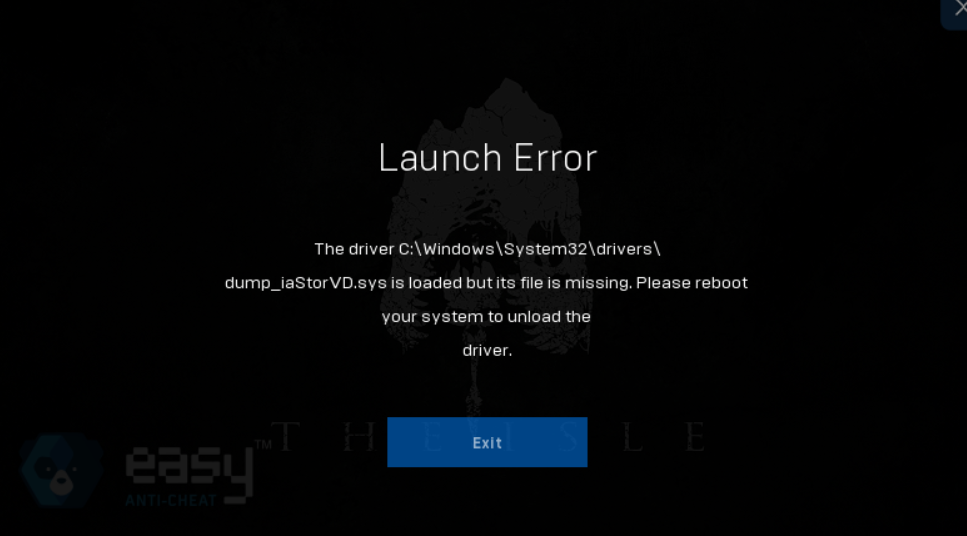
- 01Fully restart your PC (do this first)
The error literally tells you to: “Please reboot your system to unload the driver.” Do a complete restart — not just closing the game — then launch The Isle first, before other programs reload the driver. This clears the stuck driver for the large majority of players.
- 02Update or reinstall the Intel storage driver
If it returns after a reboot, the culprit is the Intel Rapid Storage Technology (RST / VMD) driver — that’s what
dump_iaStorVD.sysbelongs to. Run Intel Driver & Support Assistant (intel.com/dsa) and let it update your storage drivers, or grab “Intel Rapid Storage Technology” from your PC/laptop manufacturer’s support page. Reboot afterward. - 03Verify game files + repair Easy Anti-Cheat
In Steam, right-click The Isle → Properties → Installed Files → Verify integrity of game files. Then open the install folder
…\TheIsle\EasyAntiCheat\, runEasyAntiCheat_Setup.exe, and choose Repair Service. - 04Update Windows + run a system file check
Install all pending Windows updates (storage/chipset drivers often arrive here), then open an admin Command Prompt and run
sfc /scannowto repair any genuinely missing system files. Reboot once more. - 05Still stuck? Clean-boot or check Intel VMD
Do a clean boot (msconfig → disable non-Microsoft startup services) so no background app reloads the driver before EAC checks, then launch the game. As an advanced last resort, a mismatched Intel VMD setting in BIOS can leave this driver orphaned — only touch BIOS if you’re comfortable, and note changing storage modes can affect booting.
The short version
Restart your PC and launch the game first. That alone fixes it ~9 times out of 10. If it keeps coming back, update your Intel storage (RST) driver and reboot again.
Related
- • Common Evrima bugs & fixes — other Anti-Cheat errors, UE crashes, and launch problems.
- • Install The Isle: Evrima — make sure you’re on the right branch first.
- • Our featured community server — once you’re in, come play with active staff and custom progression.